Phone care tips: charging, cases, backups
A few habits keep a phone working longer: charge it in the open with a cable that suits it, keep it out of hot cars and direct sun, use a case and screen protector made for your model, check that your backup still runs, and install updates. If it gets wet, don’t plug anything in.

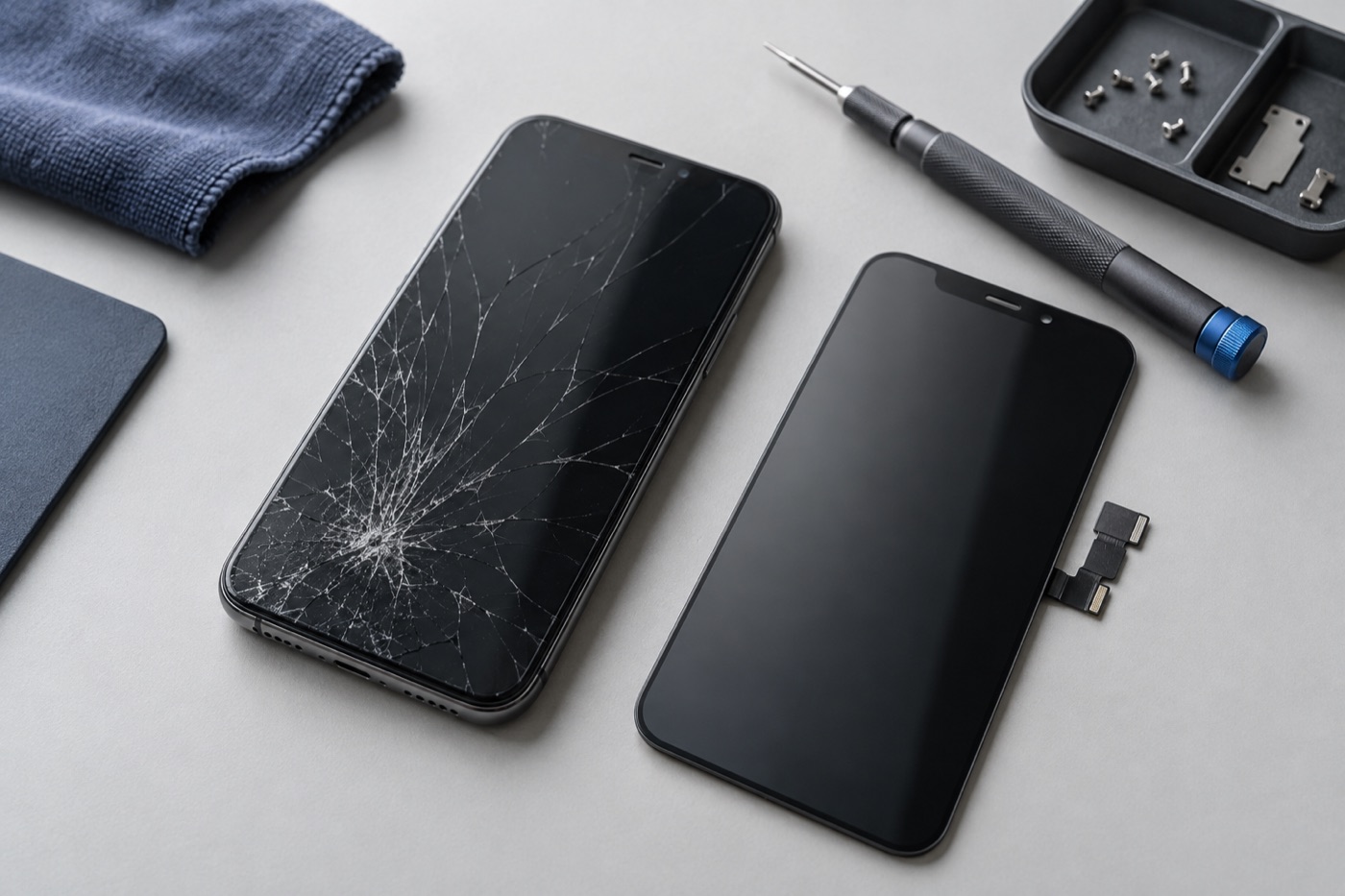
For illustration only
How should you charge your phone?
Use a charger and cable that suit your phone, and retire any cable that’s frayed or damaged. Charge it out in the open, not under a pillow or bedding, so the heat has somewhere to go. If it gets hot while charging in its case, try charging it without the case.
Some phones have an optimized charging setting that learns your routine to reduce battery wear. See if yours has it, and whether it fits how you charge.
How do you keep it cool and dry?
Keep it out of hot cars and direct sun, because too much heat can permanently shorten how long the battery lasts on a charge. If your phone gets unusually hot, stop using it and let it cool away from heat. If the phone or its charging port is wet, don’t plug anything in.
Don’t dig inside the charging port with pins or other sharp tools, and don’t blow compressed air into a wet phone. Both can make the damage worse. Phone got wet, or a cable no longer fits snugly? Bring it to any of our three Vancouver stores for a free diagnosis.
Which case and screen protector should you choose?
Pick ones made for your exact model that leave the buttons, microphones and cameras clear. A case and screen protector help with everyday bumps and scratches, but they won’t stop every break. If the screen protector cracks, peel it off gently without pressing on the screen. We sell both, so ask what fits your model.
Is your backup still working?
Check it, because a backup you switched on once may have quietly stopped. Look at the date of your last completed backup, and make sure you can still get into the account or computer that holds it. If your photos sync to an online account, deleting them from the phone may delete them there too.
If your phone is lost, damaged or replaced, a backup gives you a copy of your information. Before a repair, back up your phone if it turns on and isn’t wet, swollen or unusually hot.
Why keep software updated and storage tidy?
Updates fix problems and, as Apple notes, help you get the most from your battery, so install them when your phone offers them. Every so often, look at your storage and clear out files or apps you no longer need, after checking you can get each app’s files and sign-in details back.
Noticed a change in charging, sound or the screen? Ask us to take a look.
Get help with your device
See our repair options or send a repair request.
Further reading
Still stuck?
Tell us what you noticed and what you’ve already tried. Visit any of our three Vancouver stores, open 7 days a week. Diagnosis is free, and we agree on the price with you before any repair starts. If we can’t fix it, you don’t pay a repair fee.