iPad screen flickering? What to try first
If your iPad screen flickers, note when it happens and film it if you can. Turn off automatic brightness for a while, then restart the iPad. Don’t press on the screen or warm it to test it. If it keeps flickering, or the screen is lifting, bring your iPad to one of our stores for a free diagnosis.

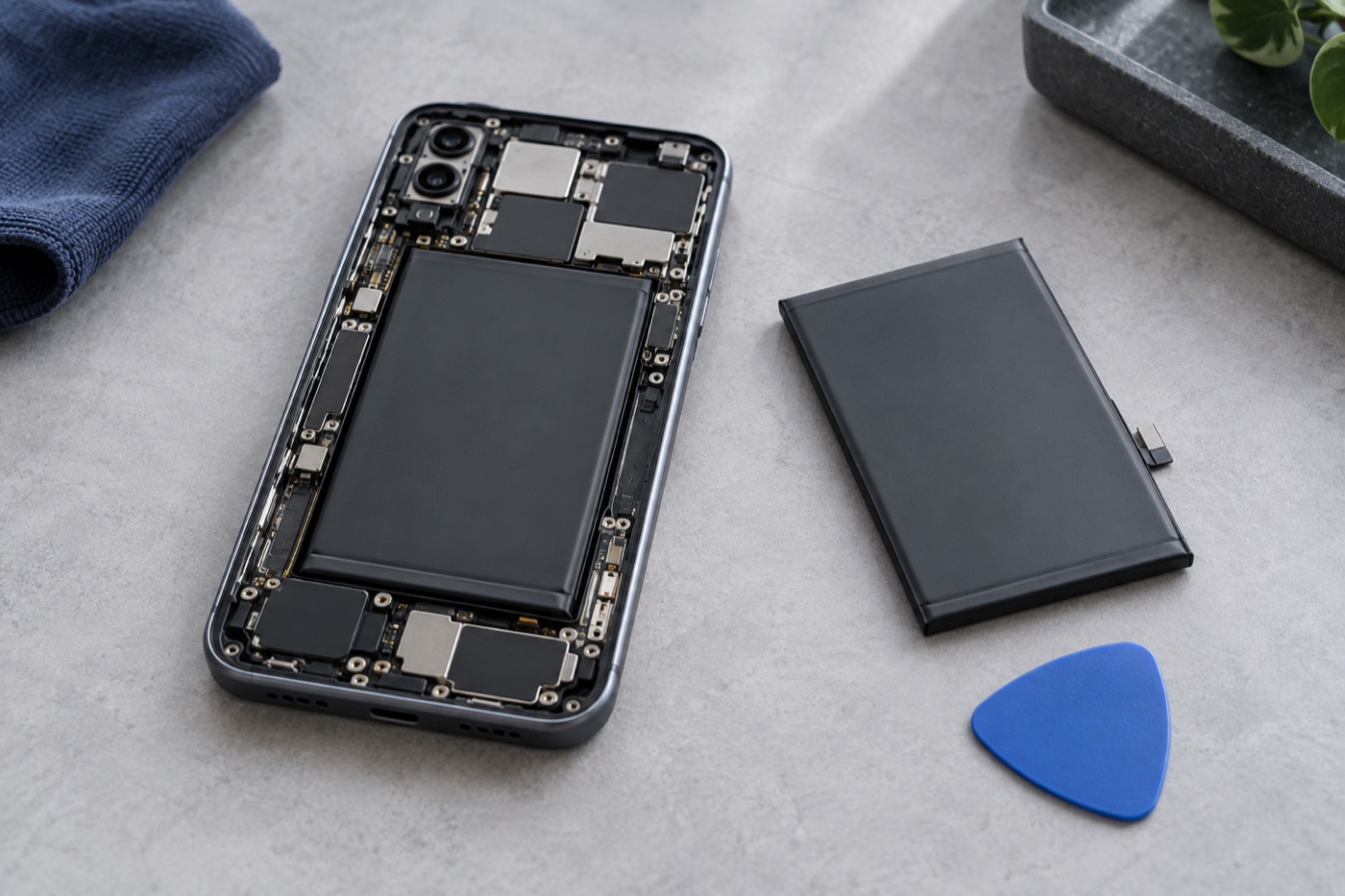
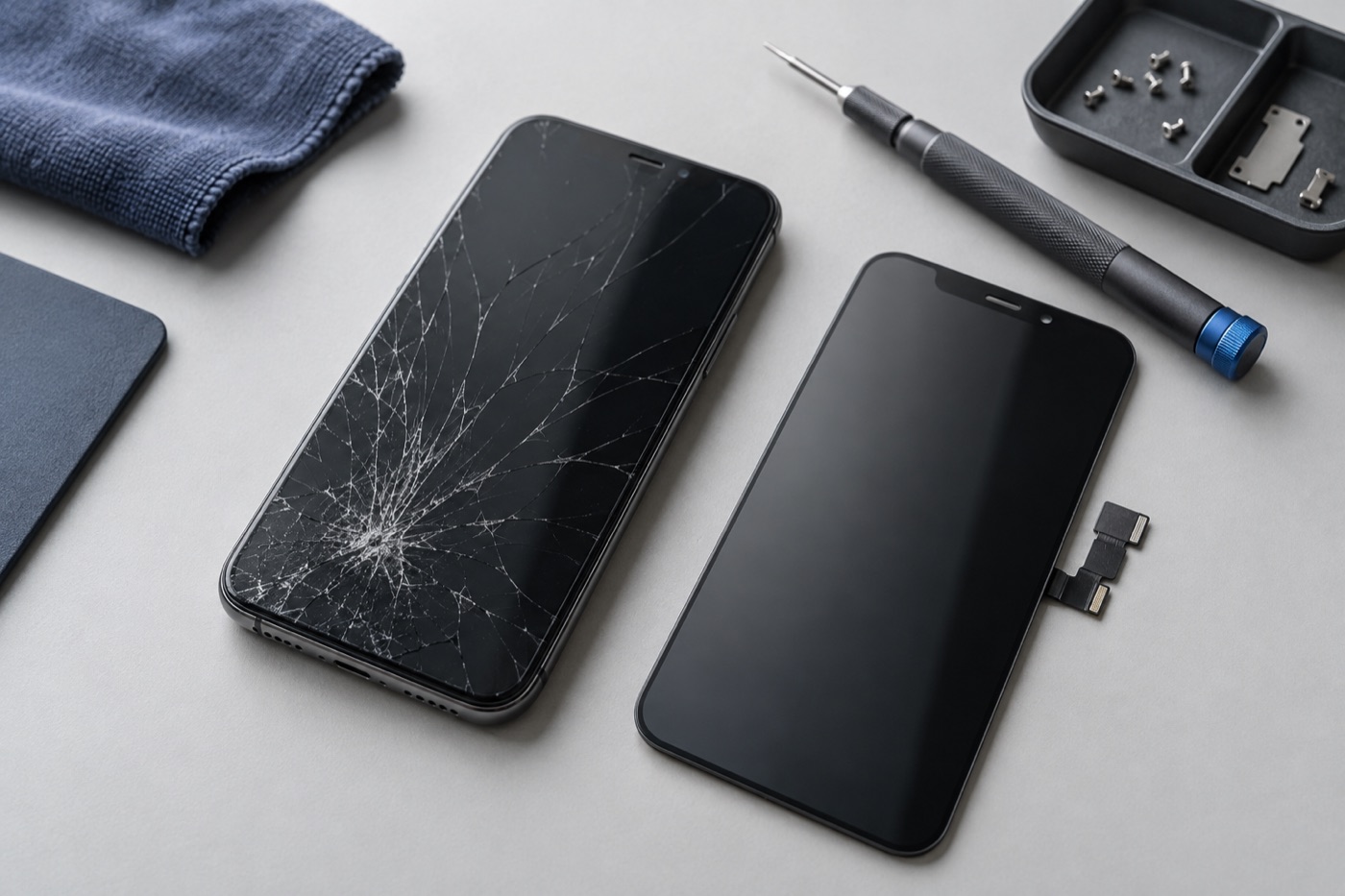
For illustration only
When does the screen flicker?
Next time it flickers, notice what you see. Does the brightness shift when the room light changes, or does the picture flash, show lines or go black? Check whether it happens in one app or on the Home Screen too. If you can, film it with another phone, because flicker often stops in the repair shop.
Could your display settings be the cause?
They could, if the brightness rises and falls on its own. Open your display and accessibility settings and switch off automatic brightness or colour adjustments for a while, then see if the flicker stops. If it makes no difference, put your usual settings back and try a restart next.
How do you restart a flickering iPad?
If it still responds, restart it the normal way. Frozen, with no Home button? Press and quickly release the volume button closest to the top button, then the one farthest from it, then hold the top button until the Apple logo appears. With a Home button, hold Home and the top button together.
Let go when you see the Apple logo.
When should you stop and get help?
Stop using and charging the iPad if the screen is lifting away from the frame or the iPad looks swollen, and contact us before you carry it in. Don’t press around the edges, bend the frame or warm it to see if the flicker changes. It isn’t safe, and it can make the damage worse.
As long as the iPad is safe to use, back up your photos, schoolwork and other important files. Flicker that won’t stop is worth a visit to any of our three Vancouver stores, especially if it started after a drop or a spill. Tell us what happened and whether anyone has repaired it before.
Once we’ve checked your iPad, we’ll explain what needs repairing, the price and how long it should take. Nothing starts until you agree, and if we can’t fix it, you don’t pay a repair fee. Our warranty is 3 months on repairs and lifetime on screen work. Terms apply.
Get help with your device
See our repair options or send a repair request.
Further reading
Still stuck?
Tell us what you noticed and what you’ve already tried. Visit any of our three Vancouver stores, open 7 days a week. Diagnosis is free, and we agree on the price with you before any repair starts. If we can’t fix it, you don’t pay a repair fee.